You’re going to build a PC, but the parts have weird names, numbers and initialisms – what are you reading? What difference do they make? This handy guide will help you out, breaking it into components.
First off is your Central Processing Unit, often known as a CPU or Processor. This is the brain of your machine. It will deal with all of the tasks you ask of your PC. You’ll often see a frequency posted next to the name – some number measured in GHz, Gigahertz. This is how many billion calculations it can do each second. The higher the number, the quicker your PC will run.
Another thing you’ll see with a CPU is a chipset and a socket. A socket will tell you if your CPU will fit into your motherboard (for example, LGA1151 sockets have 1151 pins on them – they need a motherboard with a 1151 socket otherwise the pins won’t fit), and a chipset will tell you if the two will communicate. Motherboards will also have this information in their description. You have to match these up, otherwise it won’t work.

That brings us nicely to your Motherboard, Mainboard, or MoBo if you’re lazy like me. This is your spine and central nervous system. Everything is linked to your motherboard. Important things to take note of are your socket/chipset configuration (as previously mentioned), and the DDR (Double Data Rate) because you need it to work with your RAM. At time of writing, most motherboards will use DDR4, so you need DDR4 RAM. A motherboard will have a set number of RAM slots, in multiples of 2 because you need at least 2 sticks of RAM.
RAM is your Random Access Memory. Your PC’s short term memory, basically. It deals with the processes currently in use, but won’t remember your long-lost English essay that you never deleted and is still on your PC. Like I said before, you need a DDR that matches what you can use on your motherboard.
RAM uses a memory size and a frequency. Most games now require at least 8 GB (Gigabytes) of RAM to play effectively, and video editing requires a fair bit depending on what your editing/which software is being used. The frequency is linked to DDR; DDR4-3000 means that your RAM is working at 3000 MHz at double data rate, so 1500 MHz but twice, and is compatible with a DDR4 motherboard.
But what about your long-term storage? You’ve got a few options here. First off, you have your good old-fashioned Hard Drive Disk (HDD). This is a bulky brick which comes in 2.5″ (for laptops typically, but work just as well in a desktop) and 3.5″ (for desktops); these have speeds and storage firgures too, which tell you how much information they can hold, and how quickly they can read and write it.
Your other choice is an SSD, standing for Solid State Drive. These tend to be quicker at reading and writing than a hard drive, but they’re a little more expensive. They’re pretty good for operating systems as they speed up boot-time, and I have a few select games installed onto mine.
You can use one or both of these – more memory never hurt anyone, so long as you have space to connect them all to your motherboard.
With all of these components running, a PC can get very hot. You need a way to cool it down. your CPU will need it’s own fan called a heatsink, which sits on it and pulls the heat away. But that heat just goes into the case, so we need more cooling. You can have air-cooling, water-cooling, or a mix of both. For most PCs, air-cooling with fans is fine. When you have a super powerful PC, then you might want to consider water cooling.
Airflow (which is literally just how easy it is for the air to flow and vent through your case) and fan space is really important to consider when you look for a case. When looking for a PC case, you should think of size, airflow, fan slots, and what you think looks good. This is the part you’ll look at, after all!
You’ve got your core components all ready to go, but this thing needs to… You know, turn on. Time to look for a Power Supply Unit, or a PSU for short. These have 3 important qualities: wattage, efficiency, and modularity.
Wattage is how many Watts it can output. Your PC will need a certain amount to run (sites like pcpartpicker.com are helpful when working this out). My PC needs about 450 W to run, so I have a 600 W supply.
Why 600 W when they make 450 W supplies? Efficiency. A 450 W PSU might put out 450 W when being 100% efficient, but that won’t happen. I went a step or two up, which also gives me chance to expand in future.
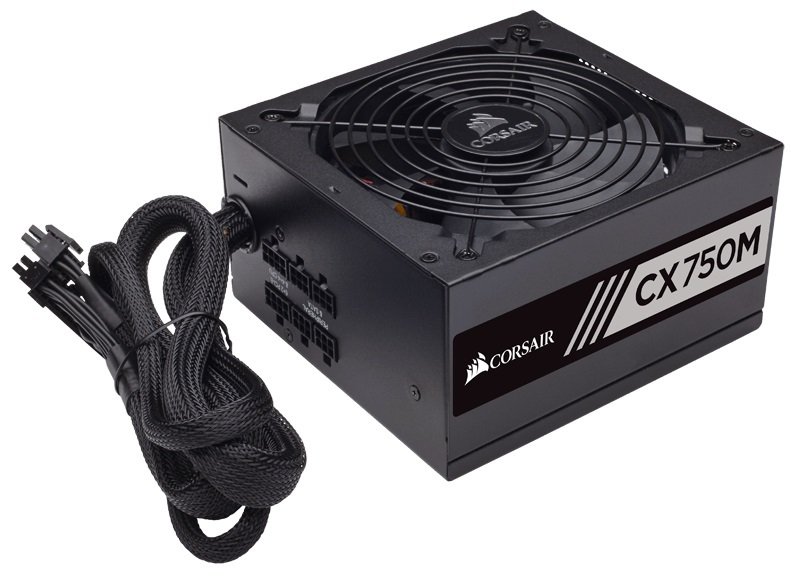
Lastly, modularity. Some power supply units have their cables already built in and non-removable. This is a traditional non-modular PSU. A modular PSU has no component cables built in, which means you only have those you need connected. They make cable management easier, but are often physically larger – a potential problem for tiny builds. Between the two options, there is semi-modular which has a few necessary power cables in-built as well as open space for you to add cables to. I’d recommend modular or semi-modular usually.
Now we’ve gone through some of the language surrounding PC specs, you might feel confident enough to move onward and pick some parts. If you’re still not sure, don’t worry! The next few posts in the series might help you out, discussing resources, requirements, and a building walk-through guide.

 PanaceaPlays